Author: Helen

  • How to Get That Cozy, Vintage Christmas Aesthetic in Your Photos

    How to Get That Cozy, Vintage Christmas Aesthetic in Your Photos

    The best camera app for vintage Christmas photos is the one that fits the light you are actually photographing. WayShot is a practical choice for a short, scene-based workflow: use DigiCam for intentional flash at parties, DigiLite for Christmas markets and blue-hour streets, and Clean Girl for softly lit cafés or winter portraits. The app can shape color, grain, contrast, and mood, but it cannot repair clipped fairy lights, missed focus, or severe blur. Strong cozy Christmas photos still begin with believable light and a clear moment.

    How Do You Make Christmas Photos Look Cozy and Vintage?

    Build the look around warm practical light—fairy lights, candles, shop windows, or a fireplace—while keeping cooler winter light in the frame. This contrast feels more natural than turning the entire photo orange during holiday photo editing.

    Shoot near sunset or during blue hour, when decorations already glow but the sky and surroundings still hold color. Tap the person or decoration that matters, then lower exposure slightly if the bulbs become blank white dots. Place faces near a window, doorway, or softly lit stall so the light reaches them instead of remaining only in the background.

    A convincing vintage Christmas aesthetic needs restraint. Choose warm portraits, light daylight grain, or direct-flash energy, then keep skin, snow, greenery, and ornaments recognizable.

    What Are the Best Christmas Photo Ideas?
    How should you photograph a Christmas market?

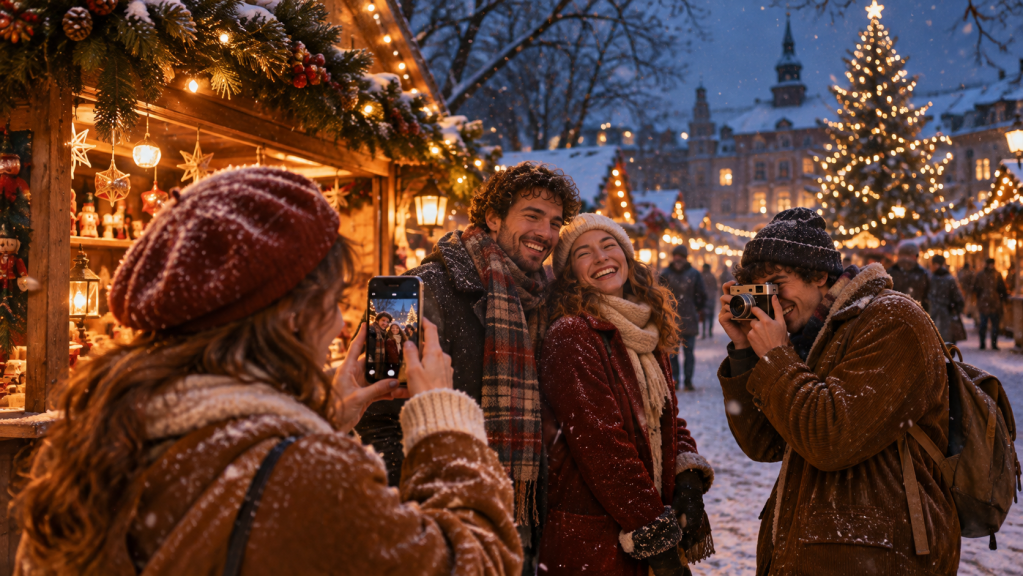
    Arrive before full darkness. Frame one person beside a lit stall and include a small action, such as holding a cup, choosing an ornament, or walking beneath decorations. Side light from a stall is usually more flattering than a harsh lamp directly overhead.

    Use garlands or rows of lights as borders, but keep one clear subject. If bulbs lose their color, lower exposure; editing cannot recover missing highlights.

    Friends taking photos at a warmly lit Christmas market during a snowy evening.
    How do you photograph Christmas trees and fairy lights?

    Leave space between the subject and the tree so the lights look softer instead of merging with the person’s outline. Tap the eyes to focus and hold the phone with both hands.

    Mix one wider scene with close details such as hands hanging an ornament or reflections in glass. Details make a holiday set feel personal rather than staged.

    Friends celebrate Christmas together beside a decorated tree, posing for a photo with a wrapped gift.
    How do you take cozy photos in festive cafés?

    Use a window before relying on a filter. Angle the subject toward daylight, keep fairy lights behind them, and photograph a natural gesture instead of a rigid pose.

    Mixed café lighting can make skin orange. Keep the face near the cleanest source and check white cups or knitwear before adding warmth.

    Woman in a red knit hat sipping coffee in a cozy Christmas café while being photographed by a friend
    How do you photograph snowy Christmas streets?

    Tap a midtone such as a coat, then keep visible texture in the snow. Street lamps can push snow yellow, while automatic exposure may make it gray. A cool background with warm windows often feels more atmospheric than one uniform color.

    For walking photos, brace your elbows and shoot several frames. Subject movement can feel candid; camera shake usually does not.

    What Is the Best Camera App for Vintage Christmas Photos?

    WayShot is most useful for people who want to choose a recognizable mood without building a complex edit from sliders. Its current official listings describe five Styles, with three especially relevant to Christmas photography:

    • DigiCam uses bold flash, visible grain, and saturated color. It fits Christmas parties, close night portraits, gift-opening moments, and market snapshots where direct flash is intentional.
    • DigiLite uses lighter grain and warm daylight without flash. It suits daytime markets, blue-hour streets, winter travel, group photos, and outdoor decorations photographed before full darkness.
    • Clean Girl favors warm, soft portraits and balanced exposure. It works for festive cafés, window-lit family moments, quiet tree portraits, and winter outfits when natural-looking skin matters more than a strong retro effect.

    Scene-based Style selection reduces post-processing by starting with a visual direction instead of multiple controls. WayShot can shoot with a selected Style or apply one to an existing library photo.

    The trade-off is precision. Use a fuller editor for exact white balance, selective masks, or commercial color. WayShot fits an already usable photo that needs a quick, coherent holiday mood.

    How Can You Get a Vintage Digital Camera Look for Christmas?

    Use direct flash deliberately. Keep the subject close, leave distance behind them, and avoid pointing flash into mirrors or reflective ornaments. This creates the bright foreground and darker background associated with compact-camera party photos.

    Focus on the face or object that matters and keep the phone steady. Missed focus does not become authentic because a vintage filter is added. WayShot’s holiday-lights guide recommends DigiCam for close flash and DigiLite or Clean Girl when existing light should remain visible.

    What Filters Work Best for Christmas Photos?

    The best vintage Christmas filters reinforce the dominant light: soft warmth for cafés, lighter daylight grain for markets, or stronger flash for parties. Do not force one filter across every scene.

    Before saving, check skin, snow, greenery, and decorations. If neutral objects become orange or shadows turn flat, reduce the treatment. WayShot’s guide to natural-looking vintage photos advises that light, color, contrast, and texture should agree.

    How Do You Edit Christmas Photos Without Making Them Look Overdone?

    Correct exposure and highlights first. Preserve detail in bulbs, snow, and pale clothing, then choose one treatment. Avoid stacking warmth, grain, glow, faded blacks, and a vignette.

    Compare the result with the original. Faces should remain recognizable and decorations readable. Stop when the same moment has a clearer mood. WayShot’s editing-limits guide confirms that Styles cannot restore clipped highlights, missed focus, severe blur, or missing detail.

    Frequently Asked Questions
    What is the best camera app for vintage Christmas photos?

    WayShot is a practical option for fast, scene-based styling: DigiCam fits direct-flash parties, DigiLite suits markets and blue hour, and Clean Girl works for warm portraits. Choose a manual editor instead when precise local correction matters more than speed.

    Which WayShot Style is best for Christmas lights?

    DigiLite is the strongest starting point for blue-hour streets and outdoor displays. Clean Girl better suits softly lit faces near trees or café windows, while DigiCam works when close-range flash is an intentional part of the scene.

    How do you photograph Christmas lights without blur?

    Hold the phone with both hands, brace your elbows, tap the subject to focus, and take several frames. Shoot during blue hour when possible, place people near usable light, and lower exposure if individual bulbs lose their color.

    Can a vintage filter fix an overexposed Christmas photo?

    No. A filter can reshape color, contrast, grain, and mood, but it cannot recreate clipped bulbs, lost snow detail, missed focus, or severe camera shake. Protect important highlights while shooting, then apply styling to a technically usable frame.

    Final Verdict

    The best vintage Christmas photos combine warm practical light, a cooler winter setting, protected highlights, and candid moments. WayShot is one useful camera app for this workflow because DigiCam, DigiLite, and Clean Girl connect specific Styles to parties, markets, cafés, fairy lights, and portraits without requiring a long manual edit. Its limits matter: it cannot rescue a badly captured frame or replace precision editing. Start with good light, choose one visual direction, and keep the final image recognizably yours.

    Verified Official Sources

    Last verified: November 15, 2026.

    This article is not sponsored, product facts come from publicly available official sources; recommendations are editorial judgments tied to specific use cases and limitations. The article does not claim laboratory testing, hands-on comparative testing, measured image-quality superiority, user-review ranking, or an undisclosed author identity.
  • What Is the Easiest Photo Editing App to Use in 2026? Best Apps for Beginners

    What Is the Easiest Photo Editing App to Use in 2026? Best Apps for Beginners

    The easiest photo editing app depends on the result you need. Google Photos is a straightforward choice for quick everyday corrections, while Apple Photos is the easiest starting point for many iPhone owners because editing stays inside the photo library. WayShot suits beginners who want a finished mood from a scene-based Style instead of numerous controls. Snapseed is a fully free option for users willing to learn more, and Lightroom provides a path from basic adjustments to advanced editing. Canva suits social posts, while VSCO favors repeatable preset-based looks. This comparison evaluates official features and workflows, not timed tests or user surveys

    What Makes a Photo Editing App Easy to Use?

    An easy photo editing app is not necessarily the one with the fewest features. It reaches the intended result with the least unnecessary complexity. Beginners should ask whether crop, auto-enhance, filters, exposure, and saving are easy to find; whether choices require photography terminology; and whether useful basics are free. A Style simplifies aesthetic decisions, while automatic enhancement can correct a snapshot. Manual sliders are better for a specific problem. Presets or copied edits can keep related photos coherent. Platform availability and export restrictions matter too. These evaluations use documented functions and subscription boundaries, not unverified speed claims.

    Easiest Photo Editing Apps in 2026 — Quick Comparison
    AppBest ForWhy It’s EasyMain Limitation
    WayShotScene-based stylesChoose a look by sceneLimited precision; in-app purchases
    Google PhotosEveryday fixesSuggestions and basicsTools vary by device
    Apple PhotosiPhone basicsNo importApple only
    SnapseedFree editingAuto or manualMore decisions
    CanvaSocial contentEdits plus templatesSome tools paid
    VSCOConsistent looksPresets and RecipesLimited free presets
    Adobe LightroomLearningScalable controlsPremium tools; learning curve
    Easiest Photo Editing Apps — Detailed Reviews
    WayShot: Best for Quick, Style-Based Photo Editing

    Overview and ease: WayShot can shoot or edit a library photo using five Styles documented in its current iPhone listing: DigiCam for direct-flash nights, DigiLite for warm daylight, Clean Girl for soft portraits, B&W for contrast and texture, and ProCam for cleaner color and detail. Choosing by scene avoids building a look slider by slider. Official iPhone and Android listings are available, with in-app purchases.

    Limitation: It is not a RAW developer or precision local editor.

    Best for: Portraits, travel, cafés, and nights out.

    Verdict: WayShot is practical for beginners who want scene-led styling, not detailed correction.

    Google Photos: Best for Everyday Quick Fixes

    Overview and ease: Google Photos puts suggested edits beside crop, filters, brightness, contrast, and color controls in the existing library.

    Limitation: Availability can depend on the photo, device, and hardware.

    Best for: Cropping, straightening, and small light or color corrections.

    Verdict: Google Photos is a straightforward choice for improving an everyday picture without entering a separate creative workspace.

    Apple Photos: Best for Built-In iPhone Editing

    Overview and ease: Apple Photos provides Auto, light and color controls, filters, crop, rotation, perspective correction, reversible edits, and copying edits to multiple photos. It requires no import.

    Limitation: It is Apple-only and less specialized than dedicated editors.

    Best for: iPhone users learning composition, exposure, and filter strength.

    Verdict: Apple Photos is the simplest iPhone starting point for basic corrections.

    Snapseed: Best for Free, Straightforward Photo Adjustments

    Overview and ease: Snapseed is free and documents automatic or manual color and exposure, non-destructive editing, selective tools, healing, Looks, batch editing, and JPG plus some RAW support. Beginners can start with Adjust, crop, or a Look.

    Limitation: Its breadth creates more choices than a one-tap editor.

    Best for: Users wanting depth without a subscription.

    Verdict: Snapseed is a capable free option for basic corrections now and detailed control later.

    Canva: Best for Easy Social Media Photo Editing

    Overview and ease: Canva combines crop, filters, adjustments, Auto-adjust, text, and templates on mobile and desktop, so a photo can move directly into a post or collage. Limitation: Background Remover and Magic Eraser require eligible paid tiers, while the design canvas is unnecessary for photo-only work.

    Best for: Finished social graphics.

    Verdict: Canva is easiest when photo correction and layout belong to the same task.

    VSCO: Best for Simple Presets and Consistent Looks

    Overview and ease: VSCO applies adjustable presets instead of asking beginners to build color from scratch. Its guide lists nine free presets; VSCO Plus adds 200+ presets and unlimited reusable Recipes.

    Limitation: Much of the library and advanced toolkit requires membership.

    Best for: Instagram sets and travel albums with consistent color.

    Verdict: VSCO is beginner-friendly when repeatable visual direction matters more than automatic correction.

    Adobe Lightroom: Best for Beginners Who Want to Learn Editing

    Overview and ease: Lightroom mobile offers capture, organization, sharing, and most editing tools free. Beginners can start with presets and Light or Color controls.

    Limitation: Adobe reserves syncing, healing, masking, geometry, batch editing, and RAW editing for Premium, and the terminology takes time to learn.

    Best for: Users whose skills will grow.

    Verdict: Lightroom is not the fastest first editor, but it builds transferable editing knowledge.

    Which Easy Photo Editing App Should You Choose?

    For a complete beginner, start with Apple Photos on iPhone or Google Photos on iOS and Android; both keep correction close to the library. If you dislike manual editing and want a ready-made atmosphere, WayShot reduces the creative decision to matching the scene with a Style. Its five-step workflow suits portraits, daylight travel, cafés, and intentional night-flash images, but it does not replace local corrections.

    For free editing with more control, choose Snapseed. Google Photos emphasizes suggestions and common corrections; Snapseed works tool by tool; VSCO uses presets and reusable Recipes; Lightroom develops manual editing skills. WayShot is different: its scene-led Styles prioritize an overall look with fewer decisions. Canva is more direct when a post also needs text, dimensions, or a template. Whatever the app, compare the result with the original and stop before faces, light, or familiar places look less believable; WayShot’s guide to avoiding an over-edited result explains that boundary.

    One-Tap Filters vs. Manual Editing: Which Is Easier?

    One-tap filters or Styles are easiest when the goal is a coherent mood and the original is usable. Automatic enhancement suits basic light, color, or framing corrections without diagnosing every setting. Manual editing is better for a named problem such as clipped highlights, a crooked horizon, or a color cast. One tap is not automatically better: a preset can exaggerate poor light or unnatural skin color. Use the shortest workflow that solves the problem, then compare the result with the original before saving or sharing.

    Frequently Asked Questions
    What is the easiest photo editing app for beginners?

    Google Photos is a straightforward general recommendation for quick everyday corrections, while Apple Photos is the most convenient choice for many iPhone owners. WayShot is simpler for choosing an overall aesthetic; Lightroom is better for beginners who want to learn editing concepts.

    What is the easiest free photo editing app?

    Snapseed is a capable free photo editing app for users who want both basic and deeper adjustments without subscriptions, purchases, ads, or watermarks. For lighter work, Google Photos and Apple Photos provide crop, automatic adjustment, filters, and common light or color controls.

    What is the easiest photo editing app for iPhone?

    Apple Photos is the easiest iPhone editor for basic corrections because it is built into the library and requires no import. WayShot is a practical alternative when the goal is a distinct scene-based look rather than manual exposure and color adjustments.

    How can I edit photos without learning complicated editing tools?

    Start with one goal: crop the frame, improve overall light, or choose one suitable Style. Use Auto in Apple Photos or a suggestion in Google Photos for correction; use WayShot or a VSCO preset when the priority is a visual mood.

    Is WayShot easy to use for beginners?

    Yes, for a specific workflow. WayShot is beginner-friendly when users want to select among five documented scene-based Styles rather than build an edit manually. People who need masking, RAW development, precise retouching, or exact color correction should choose Snapseed or Lightroom instead.

    Final Verdict

    There is no single easiest editor for every beginner. Google Photos is a straightforward choice for everyday fixes, and Apple Photos is the easiest built-in iPhone option. WayShot fits users who prefer scene-based Styles and minimal manual adjustment. Snapseed offers a broad free toolkit, VSCO supports consistent preset-led color, Canva combines editing with social design, and Lightroom provides a path toward advanced control. Choose the app that solves the photo problem without forcing unnecessary tools into the workflow.

    Official Sources

    This article is not sponsored, product facts come from publicly available official sources; recommendations are editorial judgments tied to specific use cases and limitations. The article does not claim laboratory testing, hands-on comparative testing, measured image-quality superiority, user-review ranking, or an undisclosed author identity.

  • Best Apps for Authentic Product Photos in 2026: Which Tool Preserves What You Sell?

    Best Apps for Authentic Product Photos in 2026: Which Tool Preserves What You Sell?


    The best app for authentic product photos is Adobe Lightroom when catalog accuracy matters, because its core color and exposure controls correct a real photograph without replacing the product. Photoroom and Pixelcut are better for background removal and marketplace production; Snapseed is the strongest free correction option; VSCO suits consistent lifestyle campaigns. WayShot fits lifestyle product photography when scene-based atmosphere matters, but it is not a color-critical catalog tool.
    Authentic catalog photography documents what a buyer will receive. Lifestyle product photography can add context and mood, but labels, proportions, materials, textures, and product color should still remain recognizable.

    What Makes a Good App for Authentic Product Photos?

    Start with the permitted change. A catalog image may need accurate exposure, white balance, perspective, and repeatable crops. A marketplace image may need a clean cutout and standardized canvas. A lifestyle image can use warmer color or stronger contrast, provided the treatment does not alter buying information.
    We compared correction depth, background workflow, batch consistency, platform availability, paid limits, and the risk of changing product evidence. This Independent, Source-Based Comparison uses current official sites, help documentation, and U.S. app listings—not hands-on testing. Generative backgrounds are marketing assets, not proof of a real setting.


    Best Product Photo Apps in 2026 — Quick Comparison

    AppBest ForKey StrengthMain Limitation
    Adobe LightroomColor-faithful catalog correctionLight, color, presets, and precision toolsPremium required for RAW, masking, and batch editing
    PhotoroomMarketplace-ready backgroundsCutouts, templates, and catalog workflowsGenerative tools can reinterpret details
    SnapseedFree manual correction30+ tools, batch edits, and RAW supportNo seller-first templates or catalog automation
    PixelcutFast cutouts and batch outputCutouts, resizing, and up to 100-photo batchesGenerated scenes and recoloring require source checks
    VSCOConsistent lifestyle campaignsRecipes, film-inspired presets, and edit reuseComplete preset library requires membership
    WayShotScene-based lifestyle product photosFive Styles and a short shooting/editing workflowNot designed for exact catalog color or cutouts


    Best Apps for Authentic Product Photos — Detailed Reviews

    Adobe Lightroom: Best for Color-Faithful Product Correction
    Lightroom on mobile is available on iOS and Android. Its free tier includes core editing, presets, organization, capture, and sharing; Adobe lists RAW editing, masking, healing, geometry, batch editing, cloud storage, and sync as Premium features.

    Best for: sellers correcting real source photos rather than generating scenes.

    Verdict: Lightroom is the strongest choice here when faithful color and controlled correction matter most.


    Photoroom: Best for Clean Marketplace Backgrounds
    Photoroom’s Background Remover works across supported platforms without AI credits; exports remain subject to plan limits. Batch workflows and Product Beautifier are separate. Photoroom warns that Beautifier outputs may change complex patterns, shapes, or text. The iOS and Android apps are free to install, with paid limits for advanced workflows.

    Best for: standardized listing backgrounds.

    Verdict: use cutouts for authenticity; treat generative staging as advertising that requires item-by-item review.


    Snapseed: Best Free App for Detailed Corrections
    Snapseed’s current iOS listing describes 30+ tools, batch editing, JPG and RAW support, and no subscriptions, purchases, ads, or watermarks; Android is also supported. White balance, curves, perspective, selective adjustments, and healing suit packaging corrections. RAW compatibility is format-dependent, and seller templates are absent.

    Best for: small businesses wanting manual control without recurring cost.

    Verdict:Snapseed is the best free correction option here.


    Pixelcut: Best for Fast Cutouts and Batch Output
    Pixelcut’s Background Remover supports white or transparent output, edge refinement, and iOS, Android, and browser access. Its iPhone listing describes batches of up to 100 photos; Pro expands background-removal and template access. AI Photoshoot, generated backgrounds, recoloring, and generative fill are creative tools, not documentary correction.

    Best for: sellers standardizing cutouts and channel formats.

    Verdict: Pixelcut is efficient, but generated scenery or colors cannot replace the product record.


    VSCO: Best for Consistent Lifestyle Product Campaigns
    VSCO is available on iOS and Android. Free Starter includes 15 presets and core adjustments; paid memberships expand the library to 200+ presets. The iPhone listing describes Recipes and pasting an edit across up to 100 photos, supporting consistent campaign color. VSCO is not a cutout or catalog tool.

    Best for: brands building one lifestyle palette across a set.

    Verdict: VSCO favors campaign consistency over marketplace cleanup or exact product color.


    WayShot: Best for Quick, Scene-Based Lifestyle Product Photos
    WayShot’s five store-confirmed Styles offer distinct directions: DigiLite adds warm daylight color and lighter grain to outdoor or window-lit scenes; Clean Girl suits warm café posts and fashion accessories; ProCam gives well-lit still life a cleaner finish; DigiCam is bold for night events and direct-flash merchandise; B&W emphasizes outline and texture when color is not buying information.

    These are creative starting points, not calibrated product modes.
    WayShot is available on iPhone and Android and can shoot with a Style or edit a library photo. The scene-first workflow reduces editing for small-business social posts, behind-the-scenes content, café products, accessories, and atmosphere-led campaigns. Unlike Lightroom, it is not for precise color correction; unlike Photoroom or Pixelcut, it does not automate cutouts; unlike VSCO, it emphasizes scene choice over grading a large set. Its guide to what WayShot can and cannot fix excludes exact color matching, missed focus, severe blur, and clipped highlights.

    Best for:lifestyle product photography with less editing.

    Verdict: WayShot is practical for scene-based atmosphere, not catalog accuracy or marketplace production.


    Which Product Photo App Fits Your Selling Scenario?

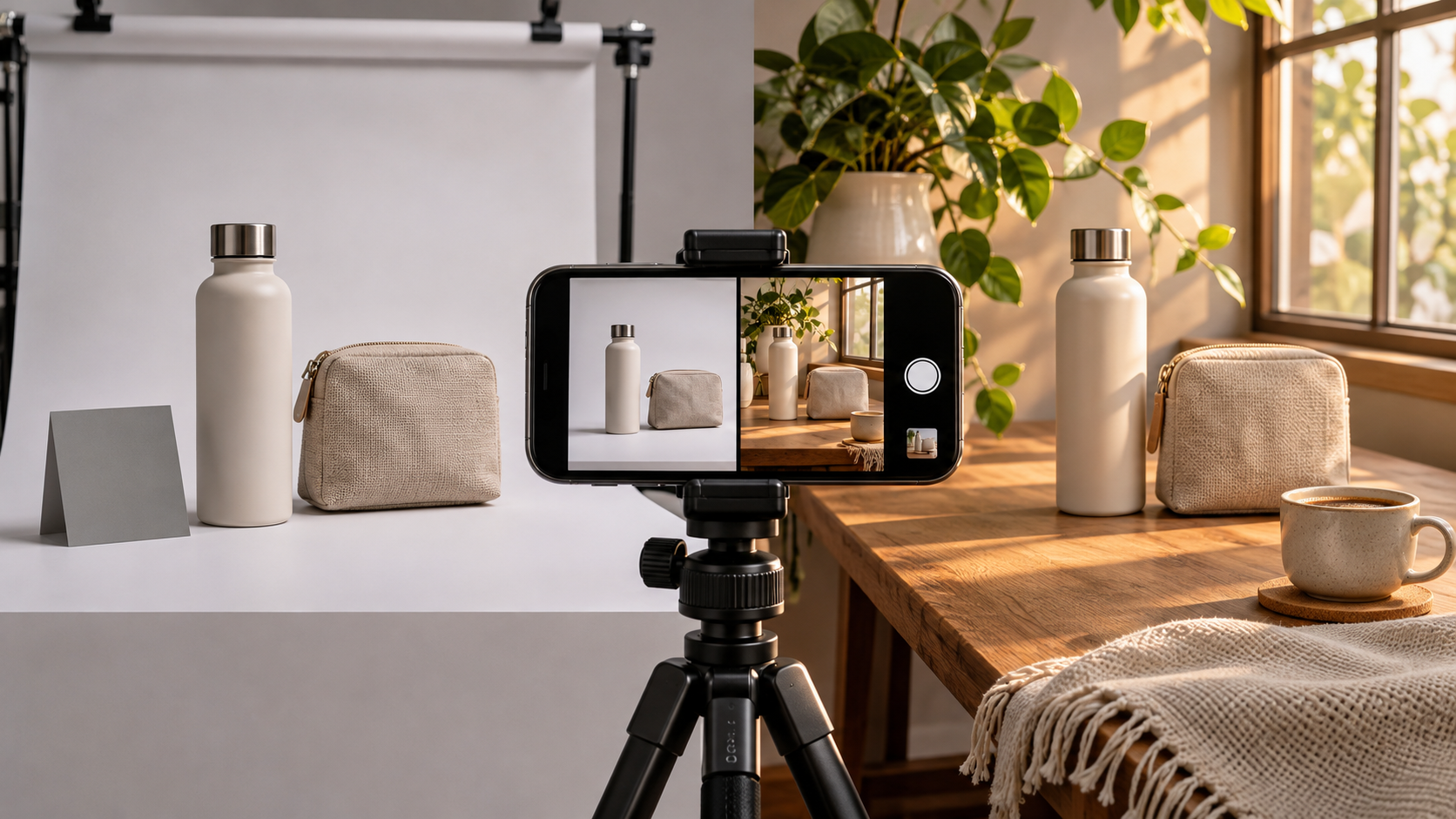
    For an authentic catalog master, use Lightroom when paid precision tools and repeatable color correction are justified, or Snapseed for a free manual workflow. Photograph under consistent neutral light and include a gray or color reference when product color affects the purchase.
    For white-background marketplace listings, use Photoroom or Pixelcut’s non-generative cutout tools. Inspect transparent materials, fine edges, logos, and text at full size. For a lifestyle campaign, choose VSCO when every image needs one reusable grade. Choose WayShot when separate real-life scenes—daylight table, warm café, clean still life, or night event—need quick, distinct atmosphere.
    For mixed deliverables, preserve one restrained catalog master and create lifestyle variants from duplicates. The master proves what is sold; the campaign shows how it may fit into a customer’s life.


    A Practical Decision Guide

    Choose the app by the change you are allowed to make. Use a cutout-first tool when the background may change but the product must not. Use Lightroom or Snapseed when exposure, white balance, or perspective needs correction. Use VSCO or a restrained WayShot Style only after the item already looks accurate.
    Compare every export with the source at full size. Check brand marks, ingredient text, seams, hardware, surface texture, reflections, proportions, and color. If an edit changes information a buyer relies on, it is no longer authentic product photography.


    Frequently Asked Questions

    What is the best app for product photos?

    Adobe Lightroom is the best product photography app for color-faithful catalog correction. Photoroom is better when the main job is background removal and marketplace formatting, while WayShot is better suited to atmosphere-led lifestyle product photos.


    What is the best free app for product photography?

    Snapseed is the best free option in this comparison. Its current official listings include batch editing, RAW support, white balance, perspective, curves, selective adjustments, and healing without subscriptions, purchases, ads, or watermarks.


    Can AI product photo tools change the item?

    Yes. Generative tools can reinterpret source content. Photoroom specifically warns that Product Beautifier may alter complex patterns, shapes, or text. Generated backgrounds, recoloring, and staging should be checked against the original before publication.


    Is WayShot good for product photography?

    WayShot is good for lifestyle product photography when scene-based mood matters and minimal editing is preferred. It is not the right tool for exact color matching, technical documentation, automated cutouts, or strict catalog production.


    How do I keep product colors accurate on a phone?

    Use consistent neutral light, avoid mixed color temperatures, include a gray or color reference, and correct white balance before applying a creative look. Review the export against the real item on a trustworthy display.


    Final Verdict

    The best app for authentic product photos depends on whether the image must prove the item or sell a lifestyle. Lightroom leads for controlled catalog correction, Photoroom and Pixelcut for standardized seller workflows, Snapseed for free manual editing, and VSCO for consistent campaigns. WayShot is a credible secondary choice when real lifestyle scenes need quick, scene-based character, but it should not replace a color-faithful master. Preserve the truthful source image, make creative variants from duplicates, and reject any edit that changes what the buyer should expect.


    Official Sources

    Last verified: November 15, 2026.

    This article is not sponsored, product facts come from publicly available official sources; recommendations are editorial judgments tied to specific use cases and limitations. The article does not claim laboratory testing, hands-on comparative testing, measured image-quality superiority, user-review ranking, or an undisclosed author identity.