
Updated November 14, 2026
Apple’s iOS 27.2 update makes Siri AI more capable of understanding personal context, remembering previous interactions, and finding information across supported applications.
But not everyone wants an AI assistant to access information from every app on their iPhone.
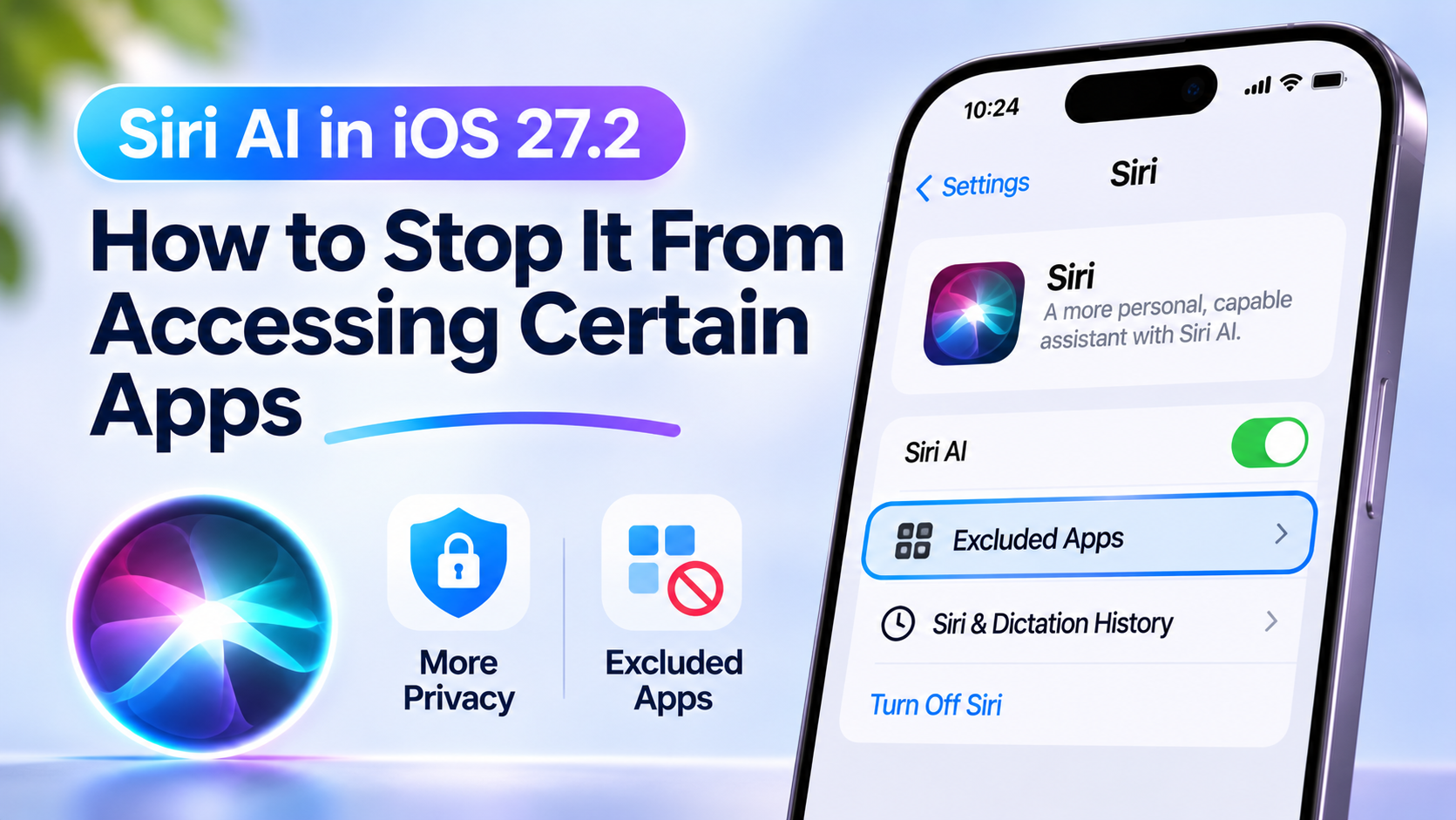
Fortunately, Apple has introduced a new privacy setting called Excluded Apps, giving users more control over which applications are available to Siri, Search, and suggestions.
Here’s how the feature works, how to configure it, and what you should know before excluding an app.
What’s New With Siri AI in iOS 27.2?
Released on October 26, 2026, iOS 27.2 introduced several improvements to Apple’s Siri AI experience.
Among the changes, Siri AI can now use more personal context to respond to requests, including information from supported sources such as:
- Photos attached to Messages conversations.
- Calendar event attendees.
- Voicemails.
- Safari history and Reading List.
- Previous Siri conversations.
For example, Siri AI may be able to reference a restaurant recommendation from an earlier conversation or retrieve relevant context from your personal information.
These capabilities can make an assistant more convenient, particularly when you’re trying to find something without remembering exactly where it was stored.
However, more personalized assistance also makes privacy controls increasingly important.
That’s where Excluded Apps comes in.
What Is the Excluded Apps Setting?
Excluded Apps is a privacy control that lets you restrict Siri, Search, and suggestions from accessing selected applications.
According to Apple’s documentation, applications are included by default unless you explicitly add them to the exclusion list.
When you exclude an app, it is no longer available to these features.
This allows you to make a more deliberate choice about which applications should be accessible through Apple’s assistant and search experiences.
For example, you might want Siri to access your Calendar while preventing access to a particularly sensitive work application.
Instead of turning off Siri entirely, you can configure restrictions for individual apps.
How to Stop Siri AI From Accessing an App
Setting up Excluded Apps takes only a few steps.
Step 1: Open Siri Settings
Open the Settings app on your iPhone.
Scroll down and tap Siri.
Step 2: Find Excluded Apps
Inside the Siri settings menu, select Excluded Apps.
This section manages applications that you don’t want Siri, Search, or suggestions to access.
Step 3: Add Applications
Tap Add Apps.
You’ll see a list of applications that can be selected for exclusion.
Choose the apps you want to restrict, then tap the blue checkmark to confirm.
Step 4: Review Your Exclusions
Return to the Excluded Apps screen and check that the applications you selected appear in the list.
These apps will now be excluded from Siri, Search, and suggestions according to Apple’s access controls.
You can return to this screen whenever you want to make changes.
How to Allow Siri to Access an App Again
Excluding an app isn’t a permanent decision.
To remove a restriction:
- Open Settings > Siri > Excluded Apps.
- Tap Edit.
- Find the app you want to allow again.
- Tap the red minus icon.
- Select Delete to remove it from the exclusion list.
- Confirm your changes.
The application will become available to Siri, Search, and suggestions again, subject to its other settings and permissions.
This makes it easy to experiment with privacy preferences without uninstalling applications.
Which Apps Should You Consider Excluding?
There’s no universal list of applications that everyone should exclude.
The right choices depend on how you use your iPhone and what information you’re comfortable making available to Siri.
Here are a few categories worth reviewing.
Banking and Financial Apps
Financial applications may contain sensitive account details or transaction information.
If you don’t need to interact with these apps through Siri or Spotlight Search, excluding them may be a reasonable preference.
However, Excluded Apps is not a substitute for the security measures provided by your bank or iPhone.
Work Applications
Some users keep confidential business information in messaging, document-management, or project-management applications.
If these apps contain information you’d prefer not to include in Siri’s personal context, consider restricting them.
Be aware that doing so may also reduce search convenience.
Personal Notes and Journaling Apps
Notes and journaling applications may contain personal thoughts, private records, or sensitive information.
If you don’t need Siri to find information inside a particular app, excluding it can provide additional control.
Messaging Applications
Messaging apps can contain a wide range of personal and professional information.
Excluding a messaging application may help restrict its availability to Siri, Search, and suggestions.
However, it can also prevent useful assistant functions that rely on that application’s information.
What Happens After You Exclude an App?
The important thing to understand is that Excluded Apps affects more than Siri AI.
Apple states that excluded applications are unavailable to Siri, Search, and suggestions.
This creates a tradeoff.
| Feature | Potential Impact of Excluding an App |
|---|---|
| Siri access | Siri cannot use the excluded app through the covered integrations |
| Search | The excluded app and its information become unavailable through the covered search experience |
| Suggestions | Suggestions involving the excluded app are restricted |
| Normal app use | You can continue using the app directly |
| App permissions | Other permissions remain separately controlled |
Excluding an app doesn’t uninstall it, erase its data, or automatically revoke unrelated permissions such as camera, microphone, or location access.
It also shouldn’t be treated as a universal guarantee that information from the app can never appear elsewhere, such as in content copied or shared into another application.
For broader privacy management, you should also review Settings > Privacy & Security and the individual settings of apps you use.
Can You Turn Off Siri AI Completely?
Yes, on supported devices.
If you’d rather not use Siri AI, Apple provides an option to turn it off.
Open Settings > Siri, scroll down, and select Turn Off Siri, then confirm.
Apple also allows eligible users to switch to Siri Classic instead of Siri AI.
This may be a better choice if you prefer simpler voice-assistant functionality without the newer AI experience.
Availability varies by region, device, and language, so not every user will see the same options.
Which iPhones Support Siri AI?
Apple lists Siri AI support for Apple Intelligence-enabled devices, including:
- iPhone 15 Pro and iPhone 15 Pro Max.
- iPhone 16 models.
- iPhone 17 models.
- iPhone 18 Pro and iPhone 18 Pro Max.
- Other eligible Apple Intelligence-enabled iPhones.
Siri AI is still in beta as of November 2026.
The feature also has language and regional restrictions. Apple states that Siri AI isn’t available in the European Union on iOS at this stage or in mainland China.
Therefore, installing iOS 27.2 alone doesn’t guarantee access to every Siri AI feature.
Frequently Asked Questions
Can Siri AI access every app on my iPhone?
Not necessarily. Siri’s available integrations depend on the app, the device, and the supported features. However, Apple includes apps by default in its Excluded Apps controls unless you restrict them.
Does excluding an app delete its data?
No. Excluded Apps restricts access through Siri, Search, and suggestions. It doesn’t delete the application’s content.
Can I still use an excluded app normally?
Yes. You can continue opening and using the app directly. The restriction applies to the covered assistant, search, and suggestion features.
Can I exclude apps without disabling Siri completely?
Yes. That’s one of the primary benefits of the Excluded Apps feature.
Is Excluded Apps available in iOS 27.2?
Yes. Apple introduced Excluded Apps as part of the Siri AI-related improvements in iOS 27.2.
Final Verdict
Apple’s new Excluded Apps setting is a useful addition to iPhone privacy controls.
As Siri AI becomes more capable of accessing personal context, users should have the ability to decide which applications are included.
Our recommendation is to review the Excluded Apps setting rather than immediately disabling Siri AI altogether.
Start with applications containing particularly sensitive information, then consider whether restricting them would interfere with features you actually use.
The best configuration balances convenience with privacy, giving Siri access to the information you want it to use while keeping other applications outside its reach.
Sources: Apple — iOS 27 Updates · Apple — Change Siri Settings · Apple — Restrict Apple Intelligence Features
Leave a Reply